
31st Mar 2026
How to Program Your Baofeng Radio Using CHIRP: A Step-by-Step Guide
Tested and Written by The Baofeng UK Technical Team | Radio Programming Guide | Read time: 8 mins
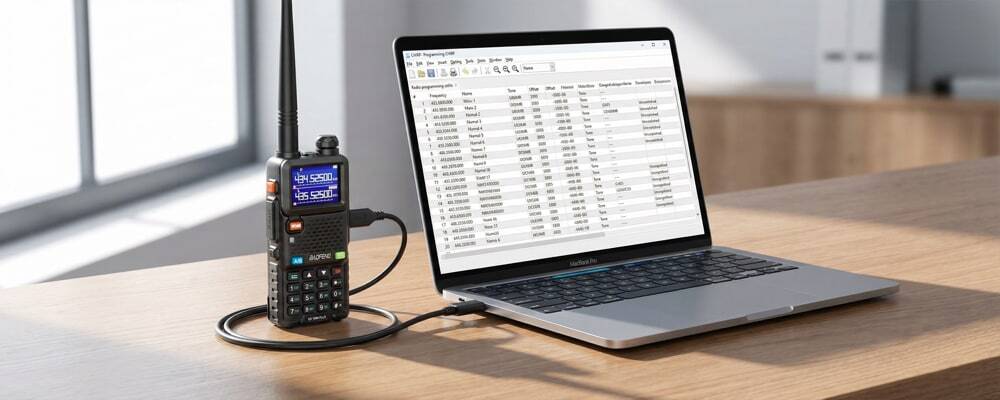
If you want to program Baofeng with CHIRP, the good news is that the process is usually much easier than entering everything by hand on the radio itself. CHIRP is a free programming tool that works across Windows, macOS and Linux, and it supports many popular radios, including a wide range of Baofeng models.
For many users, CHIRP is the simplest way to save channels, organise memories, back up settings and clone the same setup across multiple radios. The main challenge is usually not the software itself, but getting the right cable, driver and model selection in place. This guide walks through the process in plain English, with practical advice for UK users.
Key Takeaways: Baofeng CHIRP Programming
- Always Download First: Before making any edits in CHIRP, always "Download from Radio" to create a safe backup of your factory settings.
- The Cable is Crucial: 90% of CHIRP errors are caused by loose 2-pin connections or missing CH340 USB drivers on Windows/Mac.
- UK Compliance: Programming a frequency into your Baofeng does not make it legal to use. Ensure you hold the correct Ofcom licence for the frequencies you transmit on.
What is CHIRP and Why Do People Use It?
CHIRP is a free cross-platform radio programming tool that supports many radios from multiple manufacturers. The CHIRP project says it works on Windows, macOS and Linux, and recommends using the latest dated build rather than looking for a separate "stable" release.
People use CHIRP with Baofeng radios because it can help with:
- adding and editing memory channels more quickly
- naming channels more clearly
- copying settings from one radio to another
- backing up a working configuration before making changes
- adjusting common menu settings on supported models
For beginners, how to program a Baofeng radio using software is often far easier than trying to do all of this through the keypad.
Before You Start: Preparation Checklist
1. Check that your Baofeng model is supported
Before installing anything, make sure your radio is one of the models supported by CHIRP. CHIRP's FAQ says that if a radio is listed on the front page, it is supported; if it is not listed, it is not. The CHIRP wiki also has model-specific guidance for the Baofeng UV-5R, UV-82 and related variants.
This matters because some Baofeng-branded models and variants do not behave identically, even when they look similar.
2. Download the latest CHIRP build
CHIRP says its software is distributed as automatically generated dated builds, and it recommends using the latest build available. That makes it a good idea to:
- download CHIRP from the official CHIRP site
- avoid random third-party download pages
- keep your version reasonably current if you are using a newer radio variant
3. Use the correct programming cable
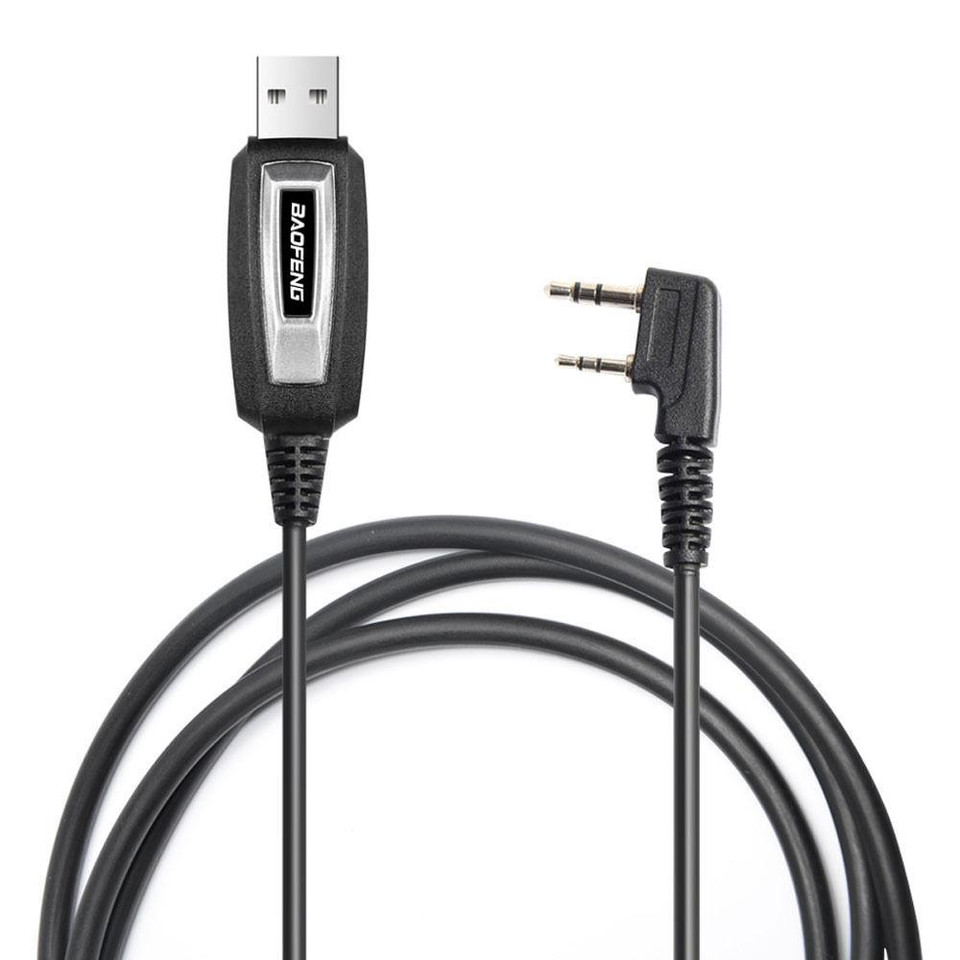
A programming cable is often the difference between a smooth setup and a frustrating one. Baofeng's UK-facing support pages also point users to CHIRP and to cable driver guidance, including CH340 driver information for some cables.
In practice, you should check:
- that the cable matches your exact radio family
- whether your cable uses a specific chipset or driver
- that the plug is fully seated in the radio
A loose connection is one of the most common reasons a read or write fails.
4. Understand what you are programming
Programming software makes changes easier, but it does not make every frequency or use automatically lawful. In the UK, Ofcom says business radio systems generally require a licence, while licence-exempt use only applies where the equipment and operation meet the relevant conditions.
That means you should be careful not to:
- enter frequencies you are not entitled to use
- assume every handheld can be treated as licence-free
- copy settings from the internet without understanding what they are for
Step-by-Step: How to Program Baofeng with CHIRP
Step 1: Install CHIRP on your computer
Download CHIRP from the official download page and install it for your operating system. CHIRP's official documentation says it supports Windows, macOS and Linux. On macOS, CHIRP's own tips page says you can confirm the cable is being recognised in System Information, or by checking connected serial devices in Terminal.
Step 2: Install any cable driver if needed
Some cables work immediately, while others need a driver first. Baofeng's UK support content specifically references CH340 driver guidance for certain Baofeng CHIRP programming cables.
If your computer does not detect the cable at all, the issue is often missing driver support, an incompatible cable, a poor USB connection, or the radio plug not being inserted firmly enough.
Step 3: Connect the cable to the radio and computer
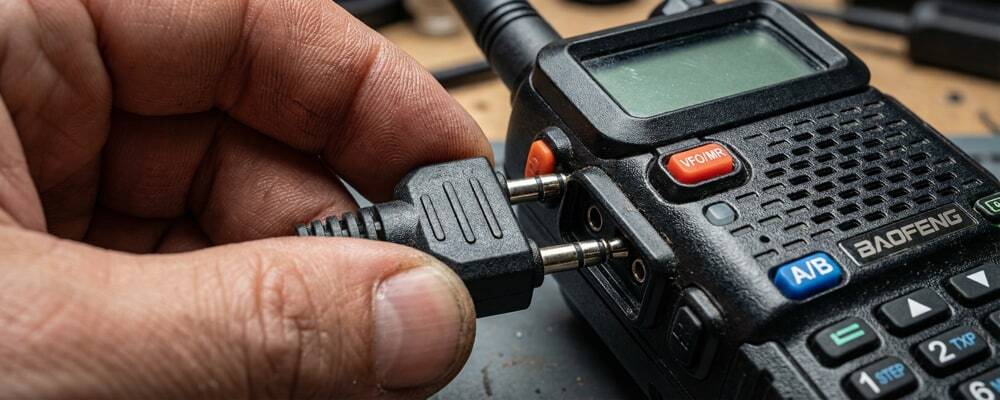
Turn the radio off first, connect the cable to the radio, then connect the USB end to your computer. Make sure the two-pin connector is pushed in fully. Baofeng's own programming guide describes connecting the USB programming cable to the computer and the radio before starting the software workflow.
This is the stage where many people think the radio or software is faulty when it is actually just a half-seated plug.
Step 4: Open CHIRP and select the correct port
Open CHIRP and find the serial or COM port linked to your programming cable. On Windows this will normally appear as a COM port (e.g., COM3, COM4). On macOS or Linux it will appear as a device path (e.g., /dev/cu.usbserial). The important thing is to choose the port that appeared after you plugged the cable in.
Step 5: Download from the radio first
In CHIRP, click Radio > Download From Radio before editing anything. This is one of the safest habits because it pulls the existing configuration into CHIRP and gives you a backup of the current setup.
You will normally need to choose the Vendor (Baofeng), Model, and Port. CHIRP's Baofeng UV-5R page exists specifically because many variants share a common base family, so choosing the closest supported model matters.
Once CHIRP has read the radio successfully, save that file (File > Save As) before making changes. This gives you a restore point if anything goes wrong or if you want to duplicate the same configuration to another radio later.
Step 7: Edit channels and settings
Now you can edit the memory list in a much clearer way than through the keypad. Depending on the radio and CHIRP support level, you may be able to add or delete channels, rename channels, set tones and offsets, change power preferences, and adjust radio settings. Keep this stage tidy and name channels clearly.
Step 8: Double-check frequencies and labels
Before uploading back to the radio, review everything carefully. This is especially important in the UK if you are working with licensed, amateur or business-use settings. Check that frequencies, transmit/receive settings, and channel names are correct.
Step 9: Upload to the radio
When you are happy with the changes, click Radio > Upload To Radio. Let the process complete fully and avoid unplugging the cable mid-transfer. Once finished, disconnect the cable and test a few channels in real use.
Common CHIRP Problems and How to Fix Them
CHIRP cannot find the radio
If CHIRP is not detecting your Baofeng radio, this is usually caused by one of four things: wrong cable driver, wrong COM/serial port, plug not fully inserted, or wrong model selection in the software.
"Radio refused to enter programming mode"
This is a common enough issue that it appears in CHIRP's issue tracker for some Baofeng-family radios. In practice, it can be caused by cable problems, radio variant differences, or using the wrong model profile.
The cable appears connected but nothing works
Start with the obvious checks: try a different USB port, reseat the plug firmly into the radio (push hard!), restart CHIRP, confirm the driver is present, and make sure the radio has sufficient battery charge.
Practical Tips for a Smoother Setup
- Keep one master file: If you manage several radios, keep one clearly named master file and duplicate from that. It saves time and reduces inconsistency.
- Change only a few things at a time: For first-time users, avoid editing dozens of settings in one pass. Make a few changes, upload, and test.
- Label channels properly: A simple channel list is easier to live with than a messy one. Good alphanumeric labels reduce mistakes in the field.
Where BAOFENG Fits In
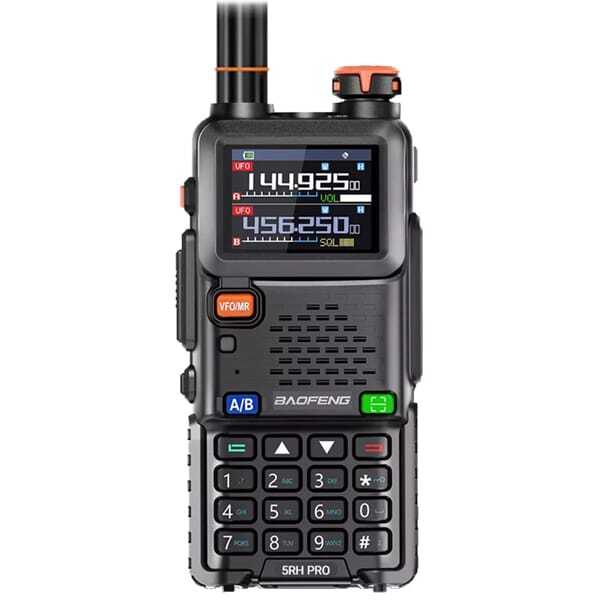
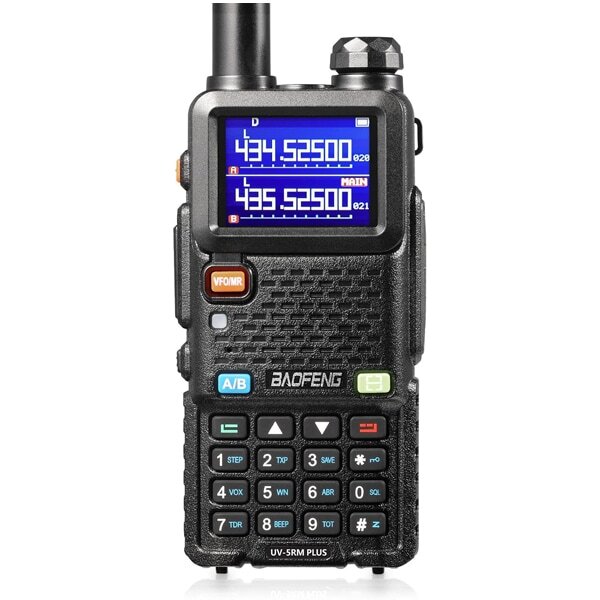
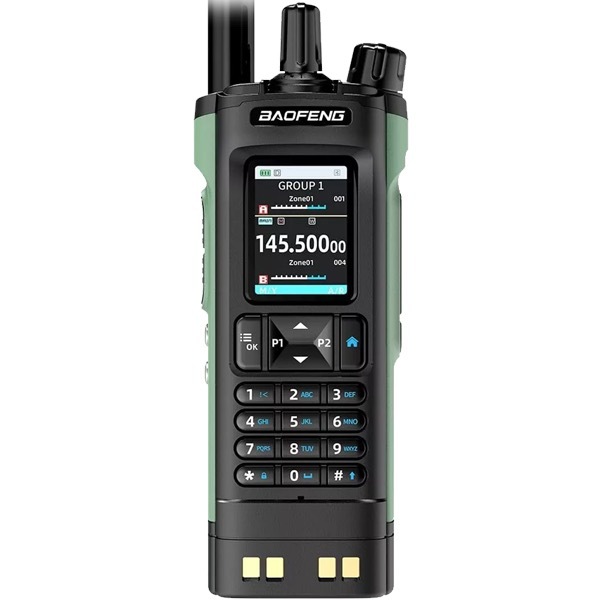
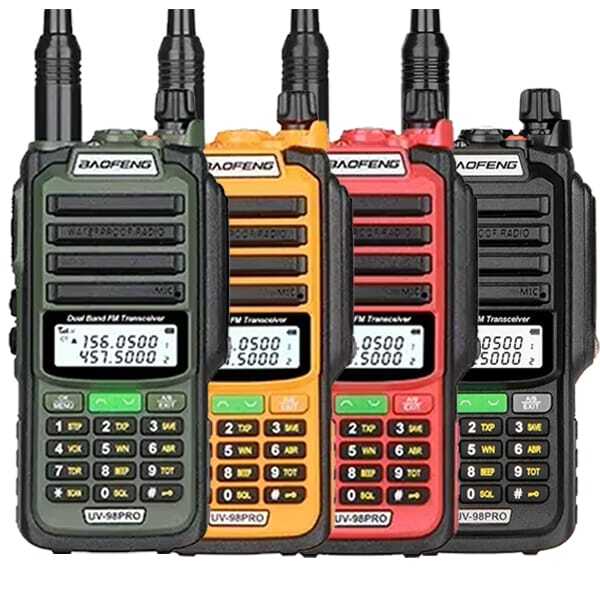
For many buyers, BAOFENG's appeal is straightforward: affordable radios, wide model availability, and a large user base that often prefers software programming over manual menu entry. That makes CHIRP especially useful for budget-conscious users, beginners, hobby users and teams that want a practical way to configure multiple handsets without spending more than necessary.
Final Thoughts
If you want to program Baofeng with CHIRP, the process is usually quite manageable once you have the right cable, the right model selection and a clean backup of the radio's existing settings. The best approach is simple: read from the radio first, save a backup, make careful edits, then test in real use.
For most people, that is the quickest and least frustrating way to organise channels and keep a Baofeng radio set up the way they actually need it.
Frequently Asked Questions (FAQs)
Is CHIRP free for Baofeng radios?
Yes. CHIRP describes itself as a free cross-platform programming tool for supported radios, including the majority of Baofeng models.
Can I use CHIRP on a Baofeng UV-5R?
Usually yes. CHIRP has a dedicated wiki page for the Baofeng UV-5R, UV-82 and related variants, making it the most popular software for these models.
Why is CHIRP not detecting my Baofeng radio?
The most common reasons are the wrong cable driver (usually missing CH340 drivers), wrong COM port selection, a loose 2-pin connection to the radio, or choosing the wrong radio model in CHIRP.
Do I need a special cable to program a Baofeng with CHIRP?
You need a compatible 2-pin Kenwood-style programming cable for your radio model family. Some cables may also need a driver installed on your computer, depending on the internal chipset used.
Is it legal to program any frequency into a Baofeng in the UK?
No. Programming a frequency into a radio does not automatically make it lawful to use. Ofcom says business radio use generally requires a licence unless the equipment and use fall within strict licence-exempt conditions.
Should I download from the radio before editing?
Yes. It is generally the safest starting point because it creates a backup of the radio's current factory configuration before you make any changes.