
4th Jan 2026
Baofeng UV-5R Programming Guide UK: How to Use CHIRP, Software and Manual Keypad Settings
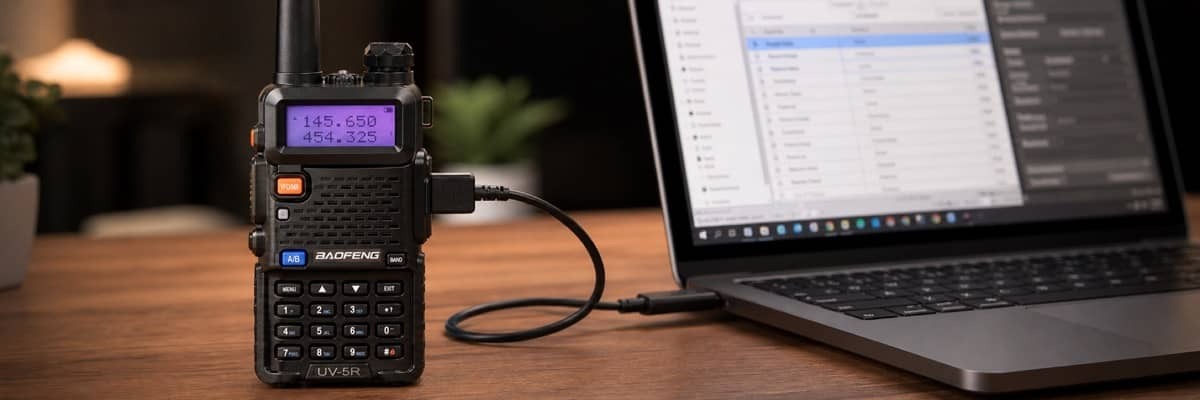
The Baofeng UV-5R is a popular entry-level ham radio in the UK, but programming channels, repeater frequencies and CTCSS/DCS tones can be confusing when you're starting out.
Fortunately, Baofeng UV-5R programming is straightforward once you understand the difference between frequency mode, memory channels and the software used to configure your radio.
There are three main ways to program a Baofeng UV-5R: using free CHIRP software, using Baofeng's manufacturer programming software, or entering settings manually through the keypad. Some compatible models also support Bluetooth programming with an optional adapter.
This guide explains each method, shows how to configure UK amateur radio repeaters, and helps you avoid common programming mistakes.
⚡ Quick Answer: What Is the Easiest Way to Program a Baofeng UV-5R?
For most beginners, CHIRP is the easiest way to program a Baofeng UV-5R.
- CHIRP is free, open-source radio programming software that allows you to manage channel frequencies, repeater offsets, memory channels, CTCSS/DCS tones and other settings from a computer.
- The classic Baofeng UV-5R supports up to 128 memory channels, numbered 000 to 127.
- To get started, connect your radio with a compatible programming cable, download its existing configuration into CHIRP, edit the channels, and upload the updated settings.
Which Programming Method Should You Choose?
| Programming Method | Best For | What You Need |
|---|---|---|
| CHIRP Software | Beginners, amateur radio operators and managing multiple channels | Computer and compatible USB cable |
| Baofeng Manufacturer Software | Model-specific settings and factory programming options | Computer, correct CPS software and cable |
| Manual Keypad | Programming individual simplex channels or repeaters without a computer | Radio only |
| Bluetooth Programming | Supported models and mobile configuration | Compatible Bluetooth adapter or built-in Bluetooth, plus supported app |
For a typical UV-5R, we recommend starting with CHIRP and keeping a backup of the original configuration before changing anything. If you are comparing different handheld models, explore our Baofeng UV-5R Series collection.
📋 Table of Contents
- 1. What You Need Before Programming Your Baofeng UV-5R
- 2. How to Program a Baofeng UV-5R with CHIRP Software
- 3. How to Program UK Amateur Radio Repeaters on a Baofeng UV-5R
- 4. How to Program Using Official Manufacturer Software
- 5. How to Program a Baofeng UV-5R Manually Without a Computer
- 6. Can You Program a Baofeng UV-5R with Bluetooth?
- 7. Baofeng UV-5R Programming Problems and How to Fix Them
- 8. Is CHIRP Compatible with Every Baofeng UV-5R Series Model?
- 9. UK Legal Requirements for Baofeng UV-5R Programming
- 10. Shop Recommended Baofeng UV-5R Radios & Accessories
- Frequently Asked Questions
1. What You Need Before Programming Your Baofeng UV-5R
Before connecting the radio to your computer, gather the correct equipment and make sure you know your radio's exact model.
A Compatible USB Programming Cable
The classic UV-5R uses a two-pin programming connector on the side of the radio. A suitable cable connects this socket to your computer's USB port, allowing CHIRP or Baofeng software to communicate with the radio.
We recommend a compatible, reliable Baofeng USB programming cables and compatible accessories or a quality cable using an FTDI USB-to-serial chipset. Some cheaper cables use USB serial chipsets that may require additional drivers, while poorly manufactured connectors can cause communication failures.
A Computer and Programming Software
CHIRP-next supports modern Windows, macOS and Linux systems, subject to its published system requirements. Download the current software from the official CHIRP download page. Alternatively, visit the Baofeng Radio UK software and driver downloads page for model-specific programming resources.
Before installing a USB driver, identify the cable's chipset. Depending on the cable and operating system, you may need a driver for FTDI, CH340 or Prolific hardware.
Your Channel and Frequency Information
Have the following information ready:
- Receive frequency (RX) in MHz.
- Transmit frequency (TX), when legally authorised.
- Repeater output and input frequencies, if applicable.
- Positive or negative repeater offset.
- TX CTCSS or TX DCS access tone, if required.
- RX CTCSS or RX DCS setting, if needed.
- Memory channel number and optional channel name.
For UK amateur repeaters, use the current details published by the repeater operator or a trusted UK amateur radio directory.
2. How to Program a Baofeng UV-5R with CHIRP Software
CHIRP provides a convenient interface for programming channels and reviewing settings without repeatedly navigating the UV-5R keypad.
Step 1: Install CHIRP and Connect Your Radio
Install the latest compatible CHIRP-next version. Turn off your Baofeng UV-5R, connect the programming cable securely to the radio's speaker/microphone socket, and connect the USB end to your computer. Switch the radio on, set a comfortable volume and select a quiet channel or frequency. Avoid pressing the PTT button while programming.
Step 2: Download the Existing Data from Your Radio
Open CHIRP and select: Radio → Download From Radio.
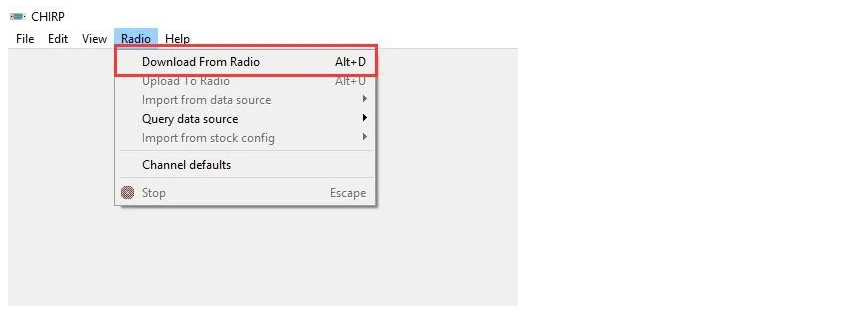
In the connection window:
- Select the correct communication port.
- Choose Baofeng as the manufacturer.
- Select UV-5R as the model, provided this matches your supported radio.
- Click OK or Download to start reading the configuration.
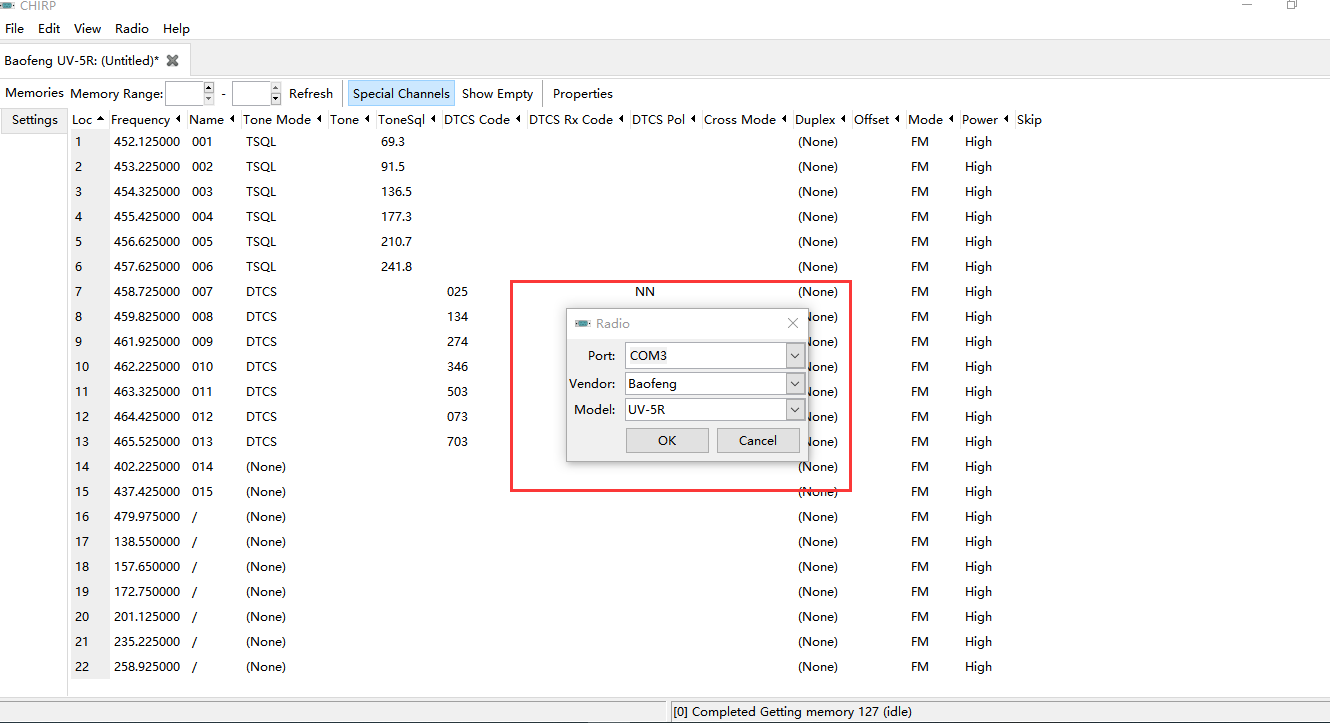
CHIRP will retrieve the radio's existing data, including programmed channel memories and supported settings.
Step 3: Save a Backup of Your Existing Settings
Once the data has downloaded, select: File → Save As. Save the original image file with a descriptive name, such as: UV5R-original-backup.img. This backup preserves existing channel information and provides a restore point if you make an unwanted change. Keep the original backup separate from your edited configuration.
Step 4: Program Channels in CHIRP
Open the Memories section. Each row represents a memory channel, with fields that determine how the radio receives signals and, where permitted, transmits.
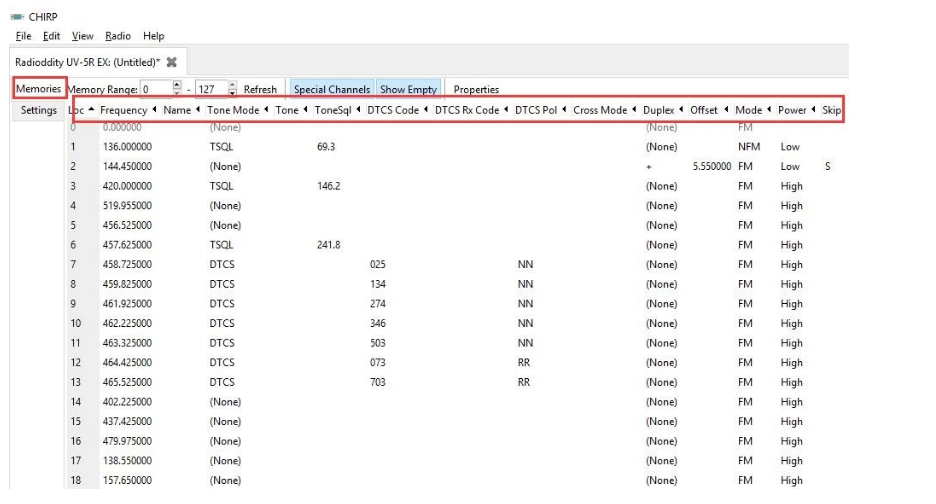
| CHIRP Setting | What It Controls |
|---|---|
| Location / Loc | Memory channel number |
| Frequency | Receive frequency in MHz |
| Name | Channel label |
| Duplex | Simplex, positive offset, negative offset or split |
| Offset | Frequency difference or absolute TX frequency for supported split configurations |
| Tone Mode | CTCSS/DCS configuration |
| Tone | Transmitted CTCSS tone |
| ToneSql | CTCSS tone used for tone squelch |
| DTCS Code | Digital coded squelch value |
| Mode | FM or narrow FM, as appropriate |
| Power | Supported transmit power setting |
| Skip | Whether a channel is skipped during scanning |
For a simplex channel, the receive and transmit frequencies are the same. In CHIRP, leave Duplex set to None unless you are configuring a receive-only channel. For a repeater channel, enter the repeater's output frequency in the Frequency field and configure the required transmit offset.
Step 5: Configure CTCSS and DCS Tones
Some UK amateur repeaters require a CTCSS or DCS code to accept transmissions. In CHIRP, the selected Tone Mode determines how the tone fields operate:
- Tone: Sends a CTCSS tone but does not require one to open the receiving squelch.
- TSQL: Uses the selected CTCSS tone for both transmission and receive squelch.
- DTCS: Uses digital coded squelch.
- Cross: Allows different transmit and receive tone arrangements on supported radios.
If a repeater requires a TX CTCSS tone, select Tone Mode = Tone and enter the correct value in the Tone column. Leave unnecessary RX tone filtering disabled so you don't accidentally block transmissions you want to hear.
Remember that CTCSS/DCS tones are not encryption. They help control squelch and repeater access; they do not make conversations private.
Step 6: Review Optional Radio Settings
Switch to the Settings tab in CHIRP to adjust internal parameters.
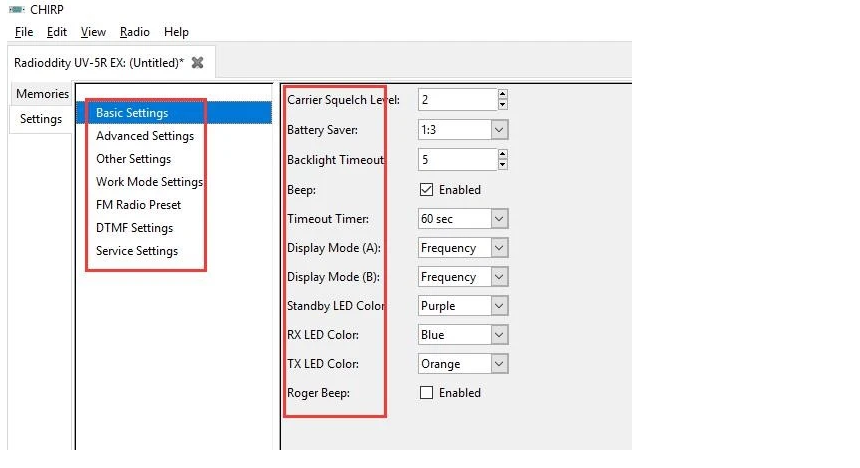
- SQL: squelch sensitivity threshold.
- TDR: dual-watch operation.
- VOX: voice-activated transmission.
- Display preferences and channel names.
- Backlight and voice prompts.
- Scan behaviour and other supported functions.
For ordinary listening, a moderate squelch setting is usually a practical starting point. Setting SQL too high can prevent weak signals from opening the receiver audio. Disable TDR temporarily when troubleshooting dual-display behaviour or preparing manual channel memories.
Step 7: Upload the Configuration to Your UV-5R
After editing your channels, save the modified configuration file. Select: Radio → Upload To Radio.
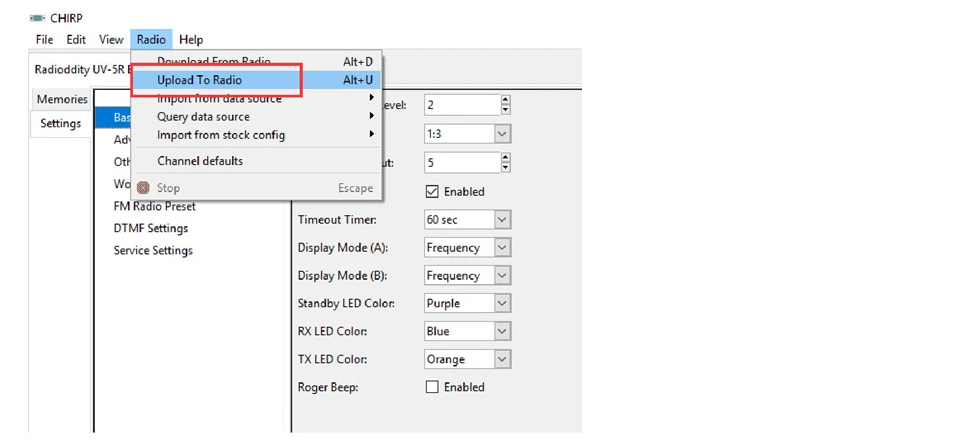
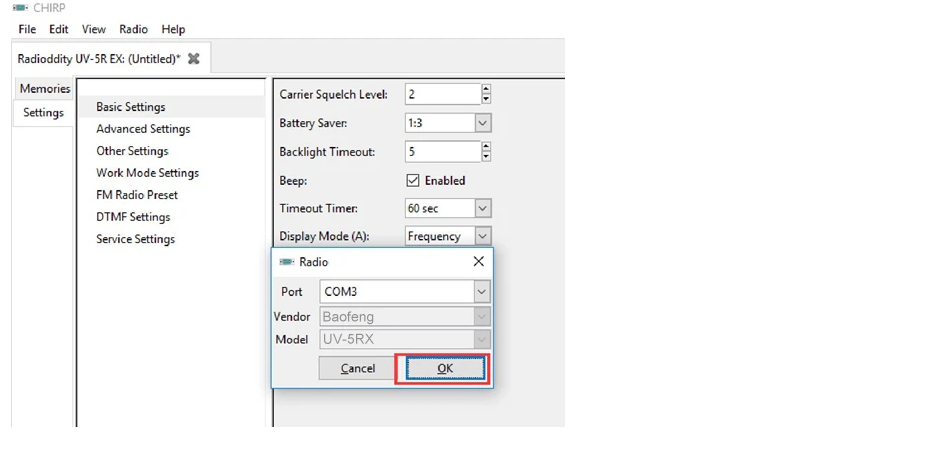
Confirm that the connected radio is the correct model and allow CHIRP to complete the transfer. Do not disconnect the cable or switch off the radio while data is being written. When the upload is complete, switch to Channel Mode, scroll through the programmed channels and verify that the displayed information matches your intended settings. Where possible, read the radio again and compare the result against the saved configuration.
3. How to Program UK Amateur Radio Repeaters on a Baofeng UV-5R
A repeater is a radio station that receives a signal on one frequency and retransmits it on another, helping appropriately licensed amateur radio operators communicate beyond ordinary direct-radio range. The key is understanding that a repeater uses two different frequencies.
Understanding Repeater Output and Input Frequencies
The repeater output frequency is the frequency your radio listens to.
The repeater input frequency is the frequency your radio transmits on to access the repeater.
The difference between the two frequencies is called the repeater offset.
For example, consider this illustrative 2-metre setup:
| Parameter | Example |
|---|---|
| Repeater output / your RX | 145.700 MHz |
| Repeater input / your TX | 145.100 MHz |
| Offset | 0.600 MHz |
| Shift direction | Negative (-) |
| TX CTCSS | As specified by the repeater operator |
| Memory channel | 010 |
With a negative offset: Transmit frequency = Receive frequency − Offset (145.700 − 0.600 = 145.100 MHz). For a positive offset, the transmit frequency is above the receive frequency.
UK repeater offsets vary by band and by repeater. Do not assume that the 5 MHz UHF offset commonly described in US programming tutorials applies to your UK repeater.
Setting Up a Repeater in CHIRP
- Choose an unused memory channel.
- Enter the repeater output frequency in the Frequency field.
- Select
+or-under Duplex according to the published repeater information. - Enter the required offset in MHz.
- Configure the TX CTCSS/DCS access tone if required.
- Select the appropriate FM mode and power setting permitted by your licence.
- Give the memory channel a recognisable name.
- Save the configuration and upload it to your radio.
If the repeater uses an unusual split, CHIRP may offer a Split setting that accepts the absolute transmit frequency, depending on model support. Always confirm the final RX and TX frequencies before transmitting.
4. How to Program the Baofeng UV-5R Using Official Manufacturer Software
Baofeng also provides manufacturer programming software, sometimes called CPS, for supported radio models. The software can be useful when you need access to factory-specific settings or when your exact radio variant is not fully supported by CHIRP.
Step 1: Download the Correct Software
Visit our radio programming software and drivers page or the manufacturer's official download resources. Select the software intended for your precise model and, where applicable, firmware version. Do not assume that UV-5R, UV-5R III, UV-5RH and UV-5RM Plus all use identical programming software.
Step 2: Connect the Radio and Select the Port
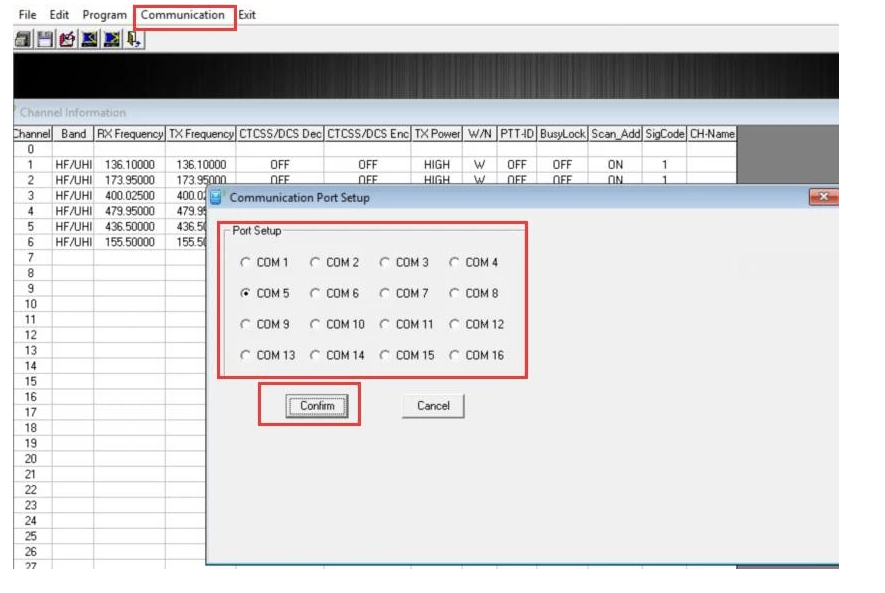
Insert the programming cable, switch the radio on and open the manufacturer software. Click Communication, select your COM Port, and click Confirm.
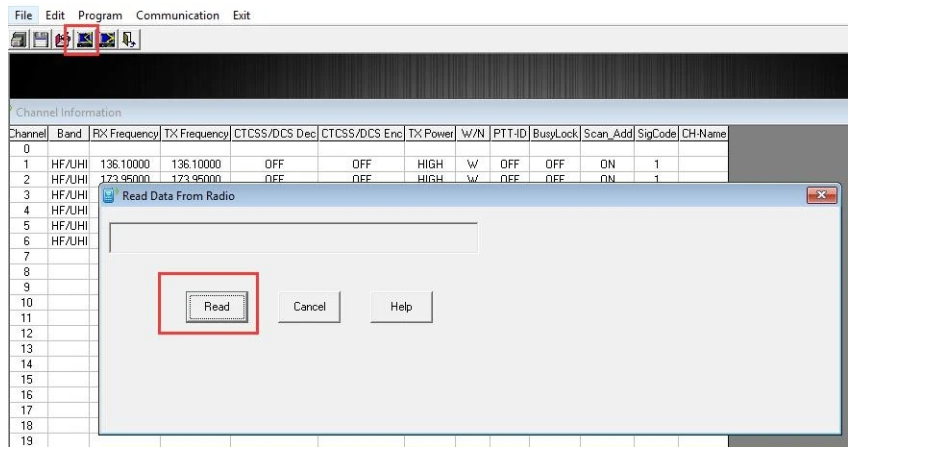
Step 3: Read the Radio's Existing Configuration
Use the software's Read function to import the existing radio data. Save a copy before editing.
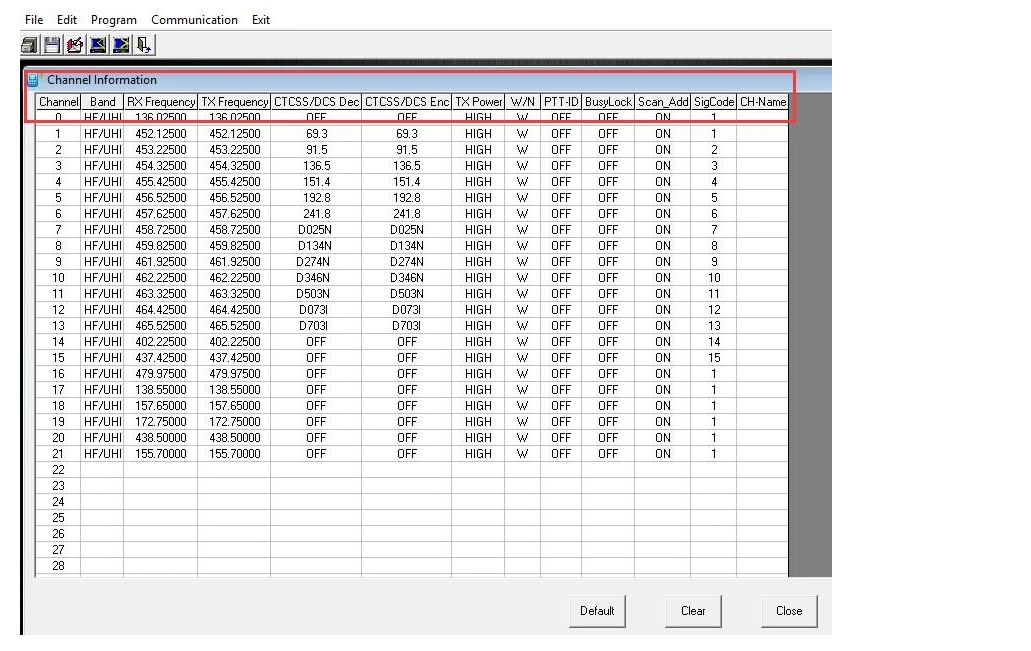
Step 4: Edit Channel and Optional Parameters
Use the channel editor to modify supported settings, including RX/TX frequencies, CTCSS/DCS, power, and bandwidth.
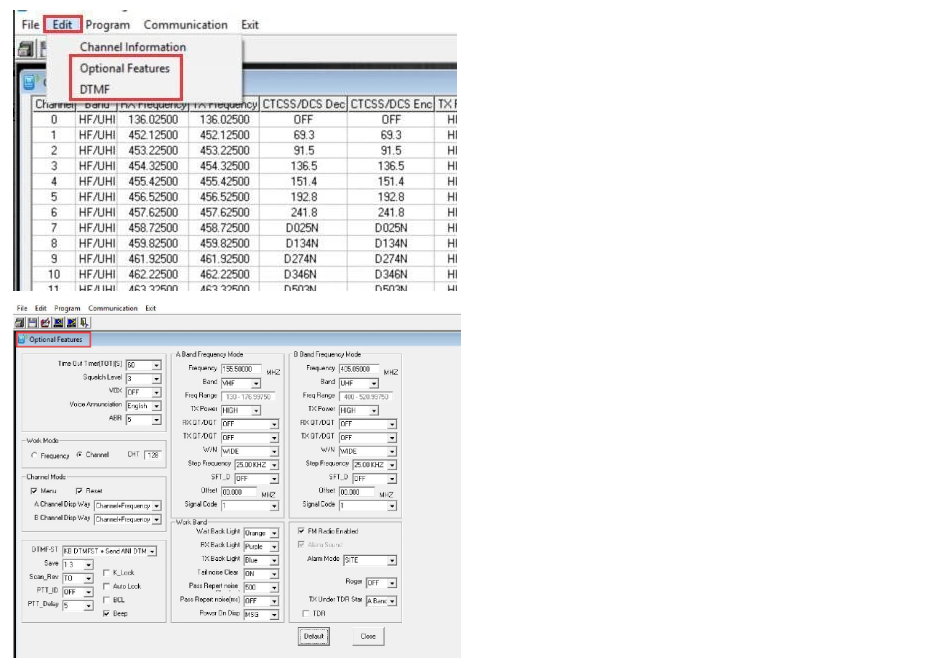
Click Edit → Optional Features to adjust VOX, squelch, backlight, voice prompts and scan settings.
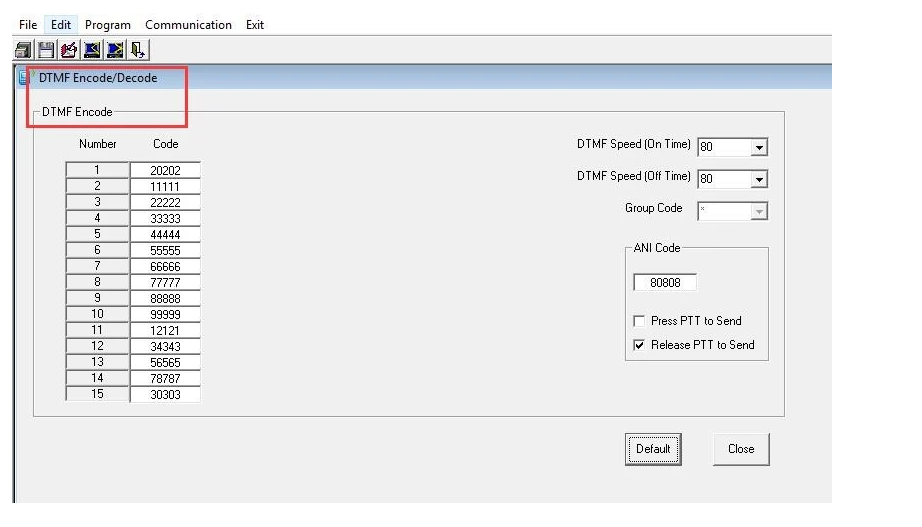
For advanced DTMF configuration, click Edit → DTMF.
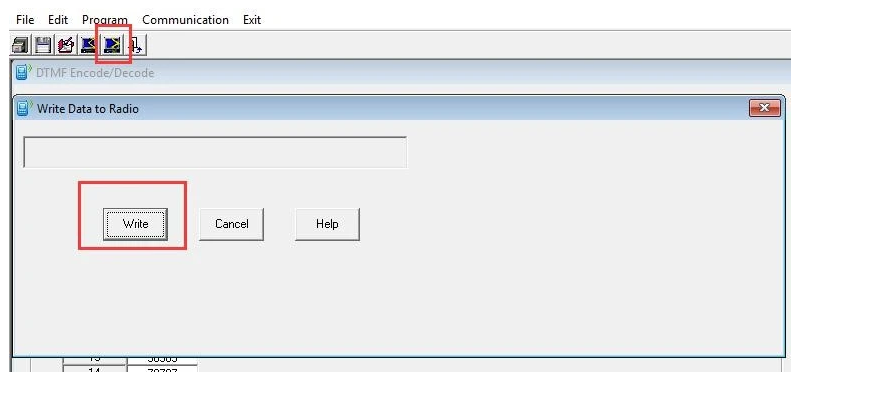
Step 5: Write the Configuration to the Radio
Once you've checked your settings, choose Write. Allow the transfer to finish before disconnecting the cable, then inspect the saved channels directly on your UV-5R.
5. How to Program a Baofeng UV-5R Manually Without a Computer
Manual programming is useful when you only need to add one or two channels, don't have a programming cable available, or want to understand how your radio operates. The following menu numbers apply to the conventional UV-5R keypad layout.
Understanding Frequency Mode and Channel Mode
The UV-5R has two main operating modes:
- Frequency Mode (VFO): lets you enter a receive frequency directly through the keypad and adjust its operating parameters.
- Channel Mode (MR): lets you select previously saved memories using their channel numbers.
Press the VFO/MR button to switch between modes. Use the A/B button to select the upper display (A Side), as manual saving generally works on display A.
How to Save a Simplex Channel Manually
- Press VFO/MR to enter Frequency Mode.
- Press A/B to select the upper display.
- Disable TDR through
MENU → 7 → OFF → Confirm → EXIT. - Set SFT-D (Menu 25) to OFF and clear any unneeded offset or tone settings.
- Enter your chosen frequency in MHz using the keypad.
- Configure TX CTCSS or DCS only if required.
- Press
MENU → 27 (MEM-CH). - Select an unused channel number between 000 and 127.
- Press
MENUto confirm, thenEXIT.
How to Save a Repeater Channel Manually
- Enter Frequency Mode: Press VFO/MR, select upper display A, disable TDR (Menu 7).
- Clear Existing Channel Data: Use Menu 28 (DEL-CH) to delete the old memory if needed.
- Enter Repeater Output Frequency: Key in the repeater's published output frequency.
- Configure Repeater Offset: Open Menu 26 (OFFSET) and enter the offset in MHz. Open Menu 25 (SFT-D) and select
+or-direction. - Set Access Tone: Set Menu 13 (T-CTCS) or Menu 12 (T-DCS) as required. Leave RX tones OFF unless specified.
- Save Receive Frequency: Press
MENU → 27 → Select Channel → MENU → EXIT. - Activate Reverse Mode: Press the
*/SCANkey briefly to swap RX/TX frequencies and verify the transmit frequency. - Save Transmit Frequency: Open Menu 27 again, select the same memory channel number, and press MENU to store TX data.
- Exit Reverse Mode & Verify: Turn off Reverse Mode, switch to Channel Mode (MR), and confirm the saved memory.
6. Can You Program a Baofeng UV-5R with Bluetooth?
Bluetooth programming is available for some Baofeng models and compatible accessories, but it is not a universal built-in feature of every UV-5R. A standard classic UV-5R generally requires an optional compatible adapter for wireless programming.
For supported radios, the process typically involves connecting a Bluetooth programming adapter, pairing it with a supported smartphone app, reading the existing radio configuration, editing the settings and writing the updated data.
The Baofeng BT-A1D Bluetooth programming adapter is one option to investigate. For information about compact models with different wireless capabilities, see our Baofeng UV-5R Mini Bluetooth programming guide.
7. Baofeng UV-5R Programming Problems and How to Fix Them
Even an experienced ham radio user can occasionally encounter a programming error. Most problems involve the cable, communication port, software version or saved channel settings.
1. CHIRP Displays "Radio Did Not Respond"
Start by checking whether the radio is switched on and the cable is properly connected. A loose connector can prevent CHIRP from communicating with the device even when the computer recognises the USB adapter. Also check that the correct port and model have been selected.
2. The Computer Does Not Recognise the Programming Cable
On Windows, open Device Manager and look for the USB serial device under Ports. If the device is missing or shows an error, identify its USB chipset and install the appropriate driver from a trusted source. Try another USB port if necessary. On macOS or Linux, check whether the cable appears as an available serial device and whether your user account has the required permissions.
3. The Radio Cannot Save a Memory Channel
If a channel refuses to save, check that you are using Frequency Mode (VFO) and the correct upper display A. Disable TDR if it is interfering with channel selection. For an existing memory, delete the previous receive data through Menu 28 (DEL-CH) before attempting to replace it.
4. You Can Hear a Repeater but Cannot Access It
First, do not attempt to transmit unless you are authorised. If you are licensed but the repeater does not respond, check the input frequency, offset size, direction and any TX CTCSS/DCS access tone. A repeater can be perfectly audible while the radio is programmed with the wrong transmit settings.
5. You Cannot Hear a Signal Even Though the Frequency Looks Correct
Check the SQL squelch setting. Also inspect RX CTCSS and RX DCS. If an unnecessary receive tone is enabled, the radio may remain silent even when a signal is present.
Quick Troubleshooting Table
| Problem | Possible Cause | Recommended Action |
|---|---|---|
| Radio Did Not Respond | Loose cable or wrong port | Reseat cable and verify serial port |
| COM port missing | Driver or USB issue | Check chipset and install appropriate driver |
| Radio version not supported | Incorrect CHIRP profile | Update CHIRP and verify model support |
| Channel will not save | Existing memory or incorrect mode | Use VFO, check TDR and clear old memory |
| Repeater cannot be accessed | Wrong TX frequency or tone | Confirm input, offset and TX access tone |
| Weak signals are silent | SQL too high or RX tone filter enabled | Reduce SQL and review RX CTCSS/DCS |
| Incorrect channels after upload | Wrong image or model | Restore the original backup and reprogramme |
For general help with additional radios, read our guide to programming Baofeng radios using CHIRP.
8. Is CHIRP Compatible with Every Baofeng UV-5R Series Model?
No. Although CHIRP supports many Baofeng radios, the exact level of compatibility depends on the model, firmware and available software driver. The classic UV-5R is well supported, but newer radios carrying a similar name may use significantly different hardware.
| Baofeng Model | Programming Considerations |
|---|---|
| UV-5R / UV-5R Plus | Commonly supported by CHIRP; classic models have 128 memory channels |
| UV-5RA / UV-5RE | Related classic variants; confirm exact software profile |
| UV-5R III | Tri-band variant requiring compatible model support |
| UV-5RH | Different radio platform; verify current CHIRP compatibility |
| UV-5RH Pro GPS | Check precise variant, firmware and supported programming method |
| UV-5RM Plus | Do not assume the standard UV-5R driver is interchangeable |
| UV-5R Mini | Check its dedicated programming options and Bluetooth app support |
When choosing a newer Baofeng UV-5R Series radio, verify the published programming requirements before copying configurations or buying accessories.
9. UK Legal Requirements for Baofeng UV-5R Programming
If you own a Baofeng UV-5R in the UK, understanding radio licensing is as important as understanding the programming software.
Do You Need an Ofcom Licence?
The standard Baofeng UV-5R is an amateur-style VHF/UHF handheld radio, not a licence-free PMR446 walkie talkie. To transmit on UK amateur frequencies, you need an appropriate Amateur Radio Licence issued by Ofcom. Your operating privileges depend on the licence conditions, including the frequencies, permitted power and types of operation. Read our UK amateur radio licence guide before making your first amateur transmission.
Can You Listen Without an Amateur Radio Licence?
An amateur radio licence is not required merely to program a radio or receive lawful amateur radio transmissions. However, UK rules concerning interception, disclosure and misuse of communications still apply. You should not assume that everything a radio can technically receive is lawful to monitor or share.
Can You Program a UV-5R to Use PMR446 Without a Licence?
No. Simply entering a PMR446 frequency does not make a standard UV-5R licence-exempt. UK PMR446 licence exemption is based on equipment meeting specific technical requirements, including restrictions on transmit power and antenna design. The standard UV-5R generally does not meet those requirements, even if its output power is reduced. For everyday family, leisure or workplace communication without an Ofcom radio licence, choose a specifically compliant licence-free PMR446 walkie talkie.
For authoritative guidance, consult Ofcom's licence-exempt equipment information and amateur radio licensing guidance.
10. Shop Recommended Baofeng UV-5R Radios & Accessories
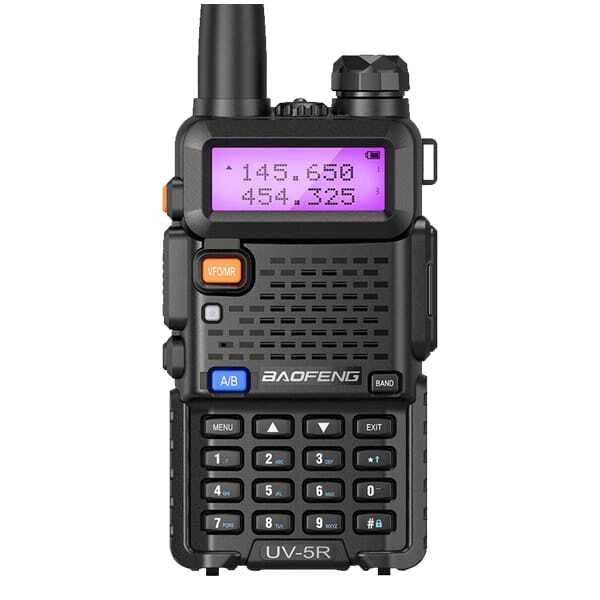
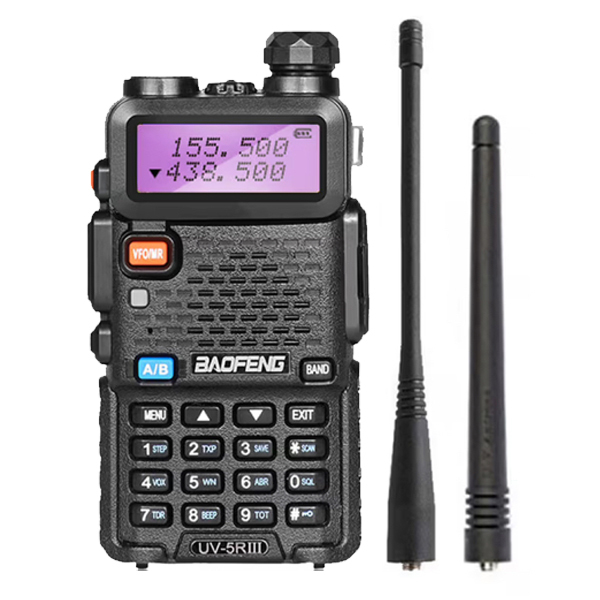
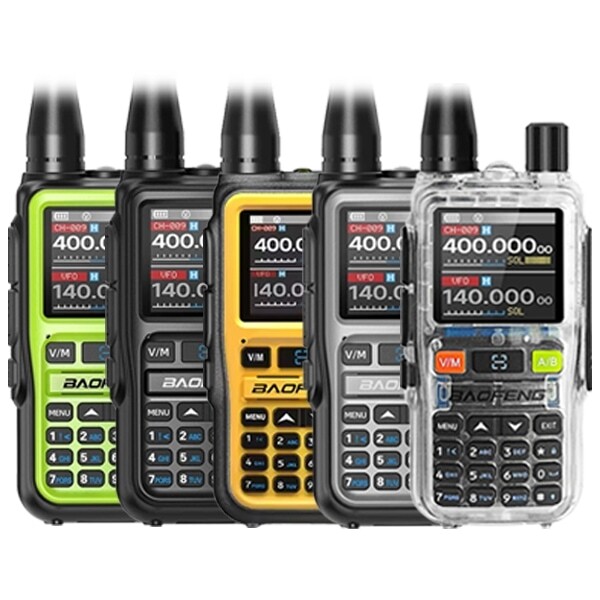
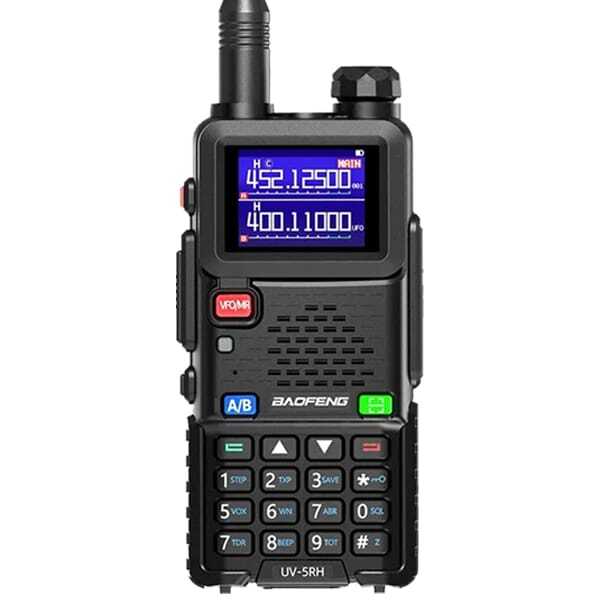
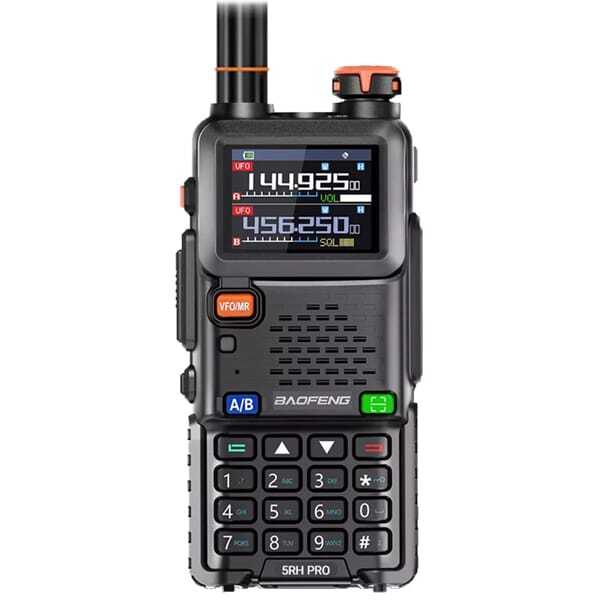
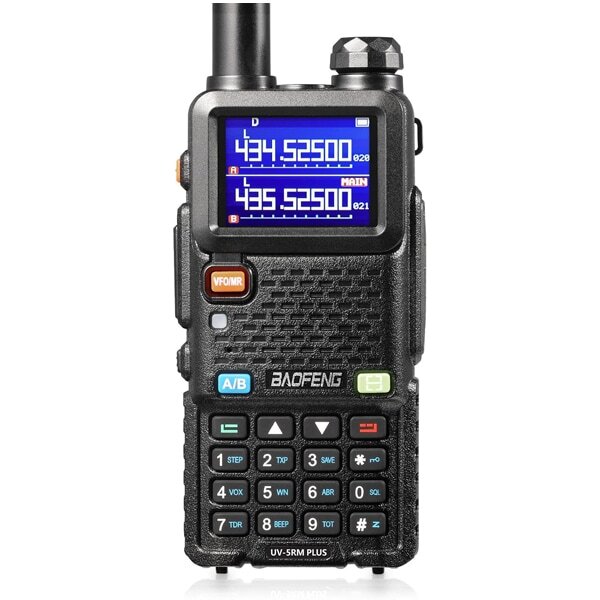
Ready to build or expand your setup? Explore popular Baofeng UV-5R radios, compatible programming cables and accessories:
Frequently Asked Questions About Baofeng UV-5R Programming
Is CHIRP software free for Baofeng UV-5R programming?
Yes. CHIRP is free, open-source radio programming software. It supports the classic UV-5R and many other radio models. Download the latest maintained CHIRP-next version from the official CHIRP website and verify your radio's compatibility.
How many channels can the Baofeng UV-5R store?
The classic Baofeng UV-5R supports up to 128 memory channels, numbered 000 to 127. Each channel can store a receive frequency and associated settings, including transmit frequency details and supported CTCSS/DCS tone parameters. Newer Baofeng models may have different memory capacities.
Can I program a Baofeng UV-5R without a cable?
Yes. The classic UV-5R supports manual keypad programming without a computer or cable. You can enter frequencies, configure repeater parameters and save memory channels. Compatible Bluetooth adapters offer another option for supported models.
How do I set the repeater offset on a Baofeng UV-5R?
In classic UV-5R Frequency Mode, Menu 26 controls the offset amount and Menu 25 controls the positive or negative shift direction. For stored repeater channels, the radio must have the correct receive and transmit frequencies saved in the memory. Always use the actual UK repeater's published settings.
Why can I hear a repeater but cannot transmit through it?
A repeater may be audible while your radio has an incorrect transmit frequency, offset or CTCSS/DCS access tone. Check those settings against the repeater information. Only perform an on-air transmission test when appropriately licensed and authorised.
What is the difference between RX CTCSS and TX CTCSS?
TX CTCSS sends a tone with your transmitted signal, often to open a repeater. RX CTCSS only allows the radio's speaker squelch to open when the expected tone is detected. Most repeater setups require the correct TX tone, while an RX tone may be unnecessary.
Can I program the same channels into two Baofeng UV-5R radios?
Yes, provided the radios and software configurations are compatible. CHIRP can help copy or import channel information between supported models. For different hardware or firmware variants, download and preserve each radio's original configuration first.
Does programming my Baofeng UV-5R increase its range?
No. Programming alone does not increase a radio's hardware performance. Correct repeater settings can provide access to an authorised repeater, which may extend communication coverage. Direct radio range still depends on terrain, antenna performance, buildings, propagation and permitted transmit power.
Final Thoughts: The Best Way to Program Your Baofeng UV-5R
Learning to program your Baofeng UV-5R is a useful skill for any UK amateur radio enthusiast. CHIRP is usually the most convenient starting point because it lets you manage frequencies, organise channels and save backups without navigating every option on the radio's keypad.
Manufacturer software provides another option for supported model-specific settings, while manual programming remains useful when you're away from a computer. Whatever method you choose, the most important habits are to back up your existing data, verify the radio model, confirm repeater information and transmit only when authorised.
If you're preparing your first amateur radio setup, explore our Baofeng UV-5R radios, compatible programming cables and software download resources. With the right equipment and settings, your UV-5R can become a practical learning tool for understanding VHF/UHF communication, simplex operation, memory management and UK amateur radio repeaters.
Technical References
- CHIRP official downloads
- CHIRP beginner programming documentation
- CHIRP memory editor field definitions
- CHIRP UV-5R troubleshooting information
- Ofcom amateur radio information
- Ofcom licence-exempt equipment guidance